By default CMass sends your email exactly as you wrote it — plain and personal, which is often what cold outreach should be. But when you want a campaign to look polished and on-brand — a newsletter, a client update, a product announcement — a Brand Kit wraps your email in a clean HTML shell with your logo, colors, signature, and footer. You set it up once and reuse it on any campaign with a single toggle.
Where to find it
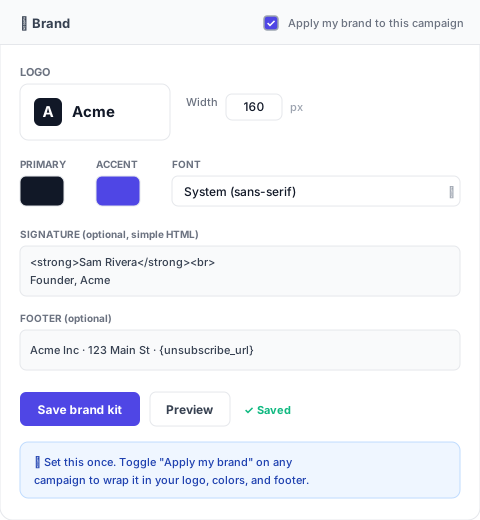
Open the CMass panel from a Gmail compose window and go to the Settings tab. Near the bottom is a '🎨 Brand' section with a toggle: 'Apply my brand to this campaign'.
Set up your kit
- 1Upload a logo — JPEG, PNG, GIF, or WebP. CMass hosts it on a permanent URL so it loads reliably in inboxes. Set the display width in pixels.
- 2Choose a primary color (headings and text) and an accent color (buttons and links).
- 3Pick a font style — System (sans-serif), Serif, or Mono.
- 4Add a signature in simple HTML — e.g. <strong>Sam Rivera</strong><br>Founder, Acme.
- 5Add a footer — your company address and an unsubscribe link. Use {unsubscribe_url} and CMass fills in the one-click unsubscribe automatically.
- 6Click 'Save brand kit'.
Preview before you send
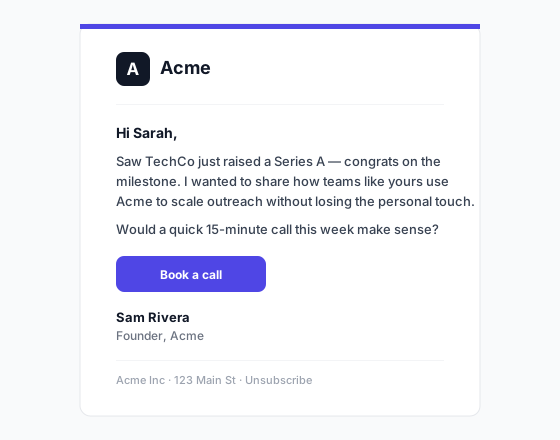
Click 'Preview' to see exactly how recipients will receive the branded email — your plain message wrapped in the logo header, colors, signature, and footer. What you see in the preview is what lands in the inbox.
Apply it to a campaign
Branding is per campaign. On any campaign you want branded, switch on 'Apply my brand to this campaign' in the Brand section. Leave it off and that campaign sends as plain text. This lets you keep cold, one-to-one outreach looking personal while making newsletters and client updates look designed.
Deliverability notes
- ▸Some inboxes block images by default — your email still reads fine without the logo, so always make sure the message stands on its own.
- ▸Keep the kit light: one logo, a couple of colors, a short footer. Heavy HTML can hurt deliverability and trip spam filters.
- ▸The footer's {unsubscribe_url} produces a real one-click unsubscribe (RFC 8058), which actually helps your sender reputation.