CMass can carbon-copy (CC) and blind-carbon-copy (BCC) additional people on the emails it sends — and it does this per recipient, not just one fixed address for the whole campaign. Each contact in your list can have their own CC and BCC, or none at all.
How it works: add a column
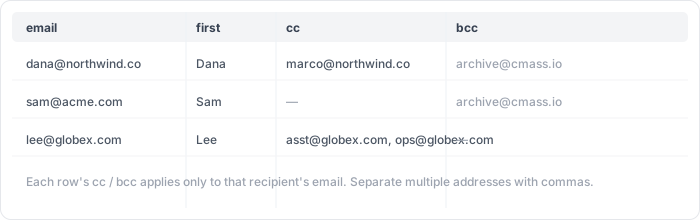
CC and BCC are driven by columns in your contact list. Add a column named cc and/or a column named bcc to your CSV or Google Sheet, then put the address you want copied in that row. When CMass sends that recipient's email, it adds those addresses to the Cc and Bcc headers.
Accepted column names
CMass recognizes these header names automatically (case-insensitive):
- ▸CC — cc, or carbon copy
- ▸BCC — bcc, or blind carbon copy
Copying more than one person
To CC or BCC several people on the same recipient, put multiple addresses in the cell separated by commas — for example, asst@globex.com, ops@globex.com. Leave a cell blank for any recipient who shouldn't have a CC or BCC.
CC vs. BCC — the difference
- ▸CC (carbon copy) — visible. The recipient and everyone CC'd can see who else was copied.
- ▸BCC (blind carbon copy) — hidden. The recipient cannot see who was BCC'd, and BCC'd people can't see each other.
Good to know
- ▸Per-recipient: each row's cc/bcc applies only to that one recipient's email — it is not broadcast across the whole list.
- ▸Merge tags still work normally in the subject and body; CC/BCC just adds extra people to the envelope.
- ▸Be thoughtful with CC on cold outreach — copying a stranger's colleague can feel intrusive. BCC is usually the safer choice for archiving.