If you run outreach for clients, you eventually have to report on it — and copying numbers into a slide deck or screenshotting the dashboard gets old fast. Client Reports turn any selection of your campaigns into a clean, shareable web page. You send one link; your client opens it in any browser and sees the results live, with no login and no CMass account needed.
Where to build one
Open the CMass sidebar in Gmail (the tab on the right edge). It opens to your Campaigns list — at the top is a '📄 Create client report' button. Click it to open the report builder right inside the panel.
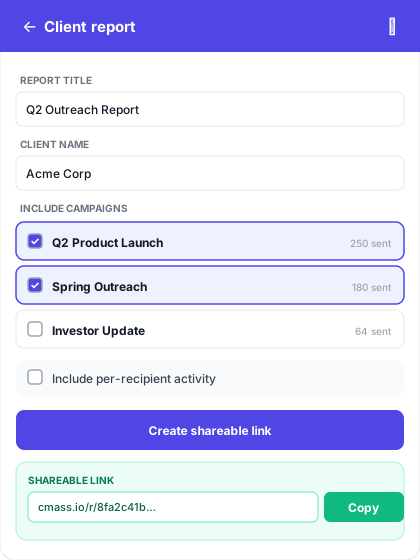
Build the report
- 1Give the report a title — this is the headline your client sees (e.g. 'Q2 Outreach Report').
- 2Add the client's name — it appears as 'Prepared for …' under the title. Optional.
- 3Tick the campaigns to include — the list shows your sent campaigns with their send counts. Combine as many as you like into one report.
- 4Optionally turn on 'Include per-recipient activity' to add a table of who opened, clicked, and replied.
- 5Click 'Create shareable link'.
CMass generates the report and hands you a link like cmass.io/r/8fa2c41b… — click Copy and send it however you normally talk to your client.
What your client sees
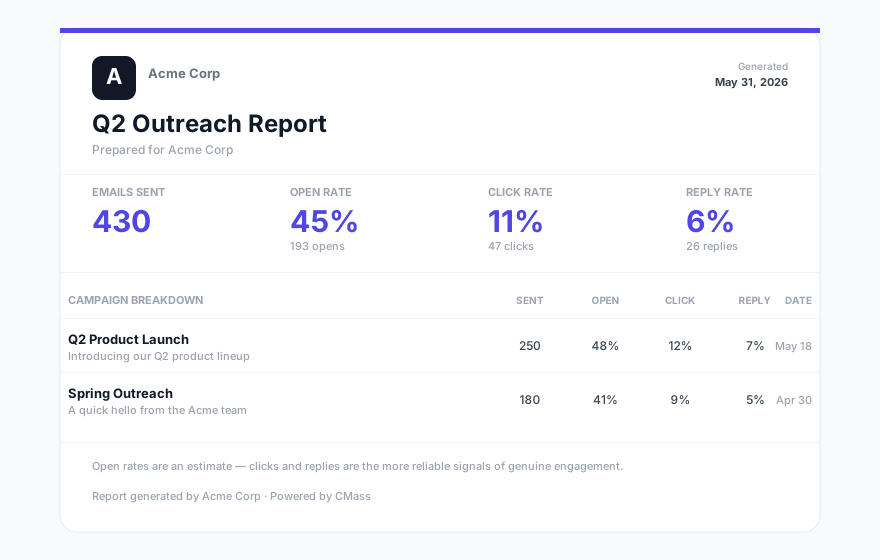
The link opens a self-contained web page — no login, nothing to install. At the top are the headline numbers (emails sent, open rate, click rate, reply rate), then a per-campaign breakdown, the most-clicked links, and — if you enabled it — per-recipient activity. If you've set up a Brand Kit, the report automatically carries your logo and colors.
Download it as a PDF (Pro)
Need a file instead of a link? On the Pro plan, the report page has a one-click 'Download PDF' button — a clean, branded copy saved straight to your downloads, no print dialog, ready to attach to an email or drop in a deck. Free reports get a 'Print / Save as PDF' button that uses your browser's print dialog instead. See the 'Download a client report as a PDF' guide for the details.
Privacy & honest metrics
The report page is unlisted and search engines are told not to index it — only someone with the link can open it. It also includes a short, honest footnote that open rates are an estimate (Apple Mail Privacy Protection inflates them), and that clicks and replies are the more reliable signals — so your client reads the numbers the right way.
Managing your reports
- ▸Copy — grab the link again any time from your list of reports.
- ▸Revoke — instantly disable a link so it can no longer be opened.
- ▸Delete — remove a report you no longer need.