CMass lives in a side panel that slides in over Gmail, so you never break your flow. It does two jobs from one place: it's where you check how your campaigns are performing, and it's where you read the relationship before you reply to anyone. The panel always opens to your Campaigns list first — your most recent campaign is highlighted with its live stats — and a single click takes you to deep intelligence on whoever you're emailing.
Opening the sidebar: Campaigns first
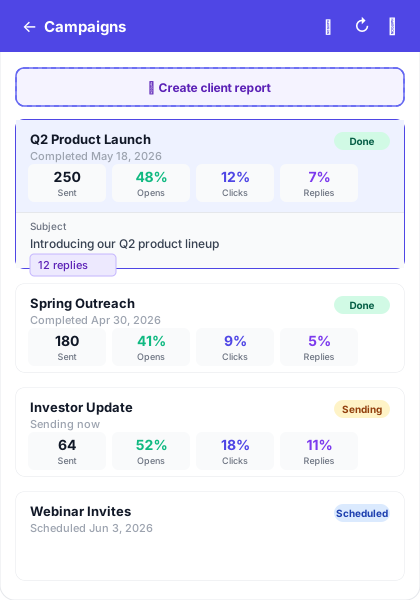
Look for the small CMass tab on the right edge of your Gmail window and click it to slide the panel open. It lands on your Campaigns list every time — even when you have a thread open — with the latest campaign that's been sent highlighted and its performance (Sent, Opens, Clicks, Replies) expanded right below the name. Tap any other campaign to expand its stats instead; the highlight follows your selection.
Switching to contact intelligence
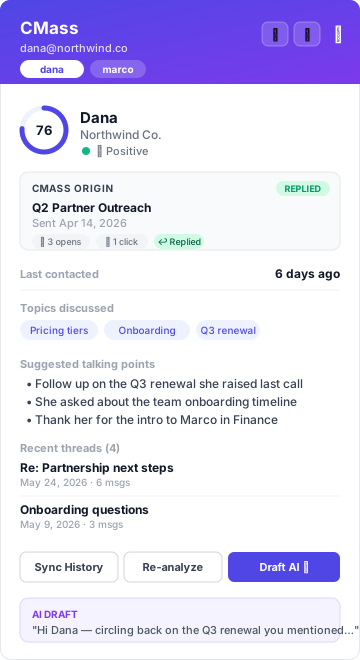
When you have a Gmail conversation open, the back arrow (←) in the panel header takes you to the Contact Intelligence view for the person you're emailing — the relationship score, sentiment, the campaign they came from, talking points, and a one-click AI draft. CMass reads the thread's participants automatically, so the right person is already loaded. The Campaigns nav button takes you back to the list whenever you want.
The relationship score
At the top of the panel is a circular score ring with a number from 0 to 100. It's a single read on how warm the relationship is, derived from how often you exchange email, how recently, whether they reply, and the tone of those replies. A higher number means a warmer, more active relationship; a low or empty ring means you barely know this person yet.
Sentiment
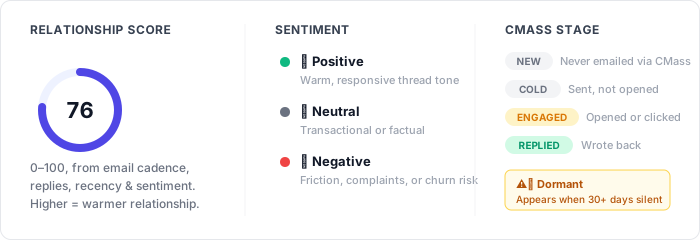
Next to the contact's name is a colored dot and a label: 😊 Positive, 😐 Neutral, or 😟 Negative. This is CMass's read on the overall tone of your conversations with this person — warm and responsive, purely transactional, or showing friction. Use it as a quick gut-check before you fire off a reply, especially with someone you haven't spoken to in a while.
The CMass Origin card
This is the CRM bridge: it tells you which CMass campaign this contact first came from, so an inbound reply is never a mystery. The card shows the campaign name, the date it was sent, and a stage badge:
- ▸NEW — this person has never received a CMass campaign
- ▸COLD — a campaign was sent, but they haven't opened it
- ▸ENGAGED — they opened or clicked, but haven't replied
- ▸REPLIED — they wrote back
Below the badge you'll see engagement chips for that campaign — 👁 opens, 🔗 clicks, and ↩ Replied — plus a '+N more campaigns' note if this contact has been in several. So when 'Dana' replies out of the blue, one glance tells you she came from your Q2 Partner Outreach, opened it three times, and clicked a link before responding.
Last contacted & the dormant warning
The 'Last contacted' line shows when you last exchanged email — Today, Yesterday, or 'N days ago'. If it's been 30 days or more, a yellow ⚠️ Dormant banner appears at the top of the panel. It's a gentle nudge that a relationship is going cold and might be worth a check-in before it lapses entirely.
Topics discussed
CMass distills your email history with this person into a handful of topic chips — the recurring themes you actually talk about, like 'Pricing tiers', 'Onboarding', or 'Q3 renewal'. It's a fast way to remember where you left off without scrolling back through months of threads.
Suggested talking points
Below the topics, CMass lists a few AI-generated talking points — specific, contextual things you could raise: an open question they asked, a commitment you made, a thread you never closed out. These aren't generic small talk; they're pulled from your real conversation history, so they give you an instant, credible way back into the relationship.
Recent threads
A compact list of your most recent conversations with this person — subject, date, and message count — so you can see the shape of the relationship at a glance and jump back to context if you need it.
Sync History & Re-analyze
The intelligence in the panel comes from analyzing your email history with the contact. Two buttons control that:
- ▸Sync History — pulls your Gmail conversation history with this person so CMass has something to analyze. Run this the first time you look someone up, or whenever the panel shows '?' and 'Unknown'.
- ▸Re-analyze — re-runs the AI analysis on the history CMass already has, refreshing the score, sentiment, topics, and talking points. Use it after a meaningful new exchange.
Draft AI — the one-click reply
The Draft AI button asks Claude to write a reply to this person using everything in the panel as context — your history, the open thread, the topics, and the relationship tone. It returns a suggested subject and body right inside the sidebar. From there you can:
- ▸Open in Compose — drop the draft straight into a Gmail compose window addressed to the contact, ready to edit and send
- ▸Copy Body — copy just the body text to paste wherever you like
Themes
The 🎨 button in the panel header lets you switch the sidebar's color theme — including several dark themes — so it sits comfortably alongside your Gmail. Your choice is remembered across sessions.
How this is different from GMass
Mail-merge tools stop at the send. CMass treats every contact as a relationship: the same platform that sent the campaign also remembers who replied, scores how warm they are, reminds you what you discussed, and drafts the next message — right where you read your mail. It turns a one-way blast into an ongoing conversation.