A follow-up you can't see is a follow-up you'll miss. CMass tasks have a date and time, and when one comes due you get a real reminder — not just a line buried inside a record.
Adding a follow-up with a due date
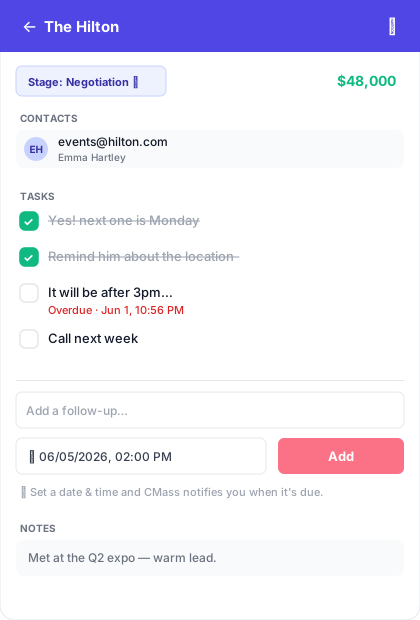
Open any CRM record and find the 'Add a follow-up…' field under Tasks. Type what you need to do, set a date and time in the picker next to it, and click the coral Add button. That's it — the task is saved with its due time.
How you get reminded
CMass reminds you three ways, so a due follow-up reaches you wherever you are:
- ▸Desktop notification — a system alert fires at the exact time the follow-up is due, even if the record is closed
- ▸Icon badge — the CMass icon in your Chrome toolbar shows a count of how many follow-ups are due today, from any tab
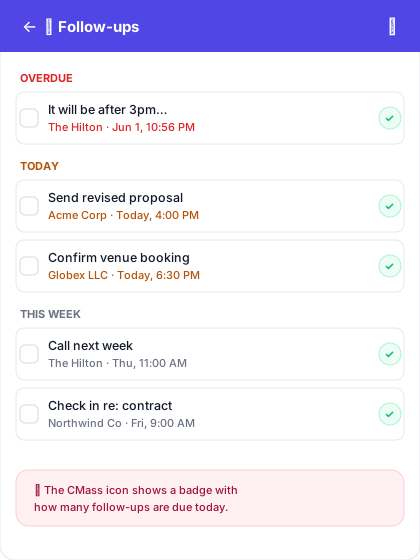
- ▸Follow-ups view — a single list of every open task across all records, grouped by Overdue, Today, and This week
The Follow-ups view
From the CRM pipeline view, click the '⏰ Follow-ups' bar at the top to open the cross-record list. It rolls up everything you owe across every record and pipeline, sorted by urgency. Click any item to jump straight to its record, or check it off right from the list.
Completing a follow-up
Check a task off and its reminder is cancelled and the badge count updates. Complete tasks stay on the record with a line through them, so you keep a history of what you've already done.