CMass includes a lightweight CRM that lives in the same Gmail sidebar as your campaigns. It's built for people who run outreach and want to track what happens next — who replied, which deal is where, and what you owe each contact — without bolting on a separate tool like Salesforce or a spreadsheet that goes stale.
Opening the CRM
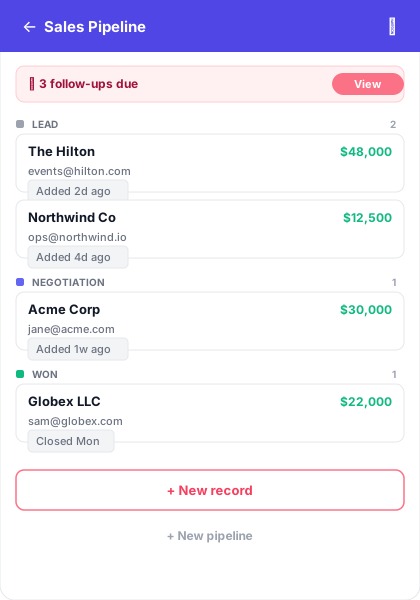
Open the CMass sidebar in Gmail and click the coral 'Open CRM' button. You'll land on your pipelines. A pipeline is a set of stages a deal moves through — for example Lead → Negotiation → Won. You can create as many pipelines as you need, each with its own stages.
Adding a record
A record is one deal, company, or relationship you're tracking. Click '+ New record', give it a name (like 'The Hilton'), optionally set a value, and choose its stage. Each record can hold contacts, linked email threads, tasks, and notes — everything about that relationship in one place.
- 1Click '+ New record' at the bottom of a pipeline
- 2Name the record and pick its stage
- 3Add a value if you're tracking deal size (optional)
- 4Open the record to add contacts, tasks, and notes
Inside a record
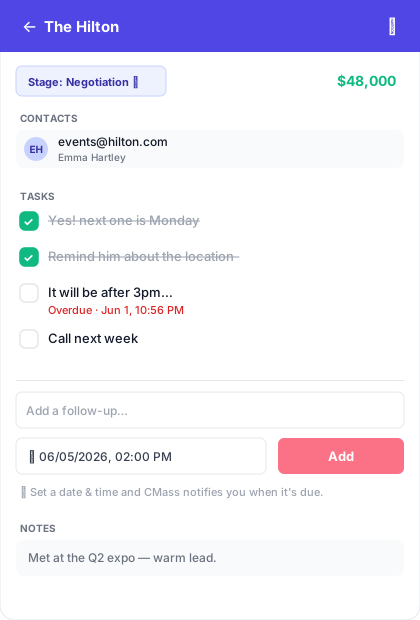
Open any record to see its detail view. Contacts list the people on the deal. Tasks are your follow-ups (see the follow-up reminders guide). Notes are free-form context — where you met, what was discussed. Linked emails are the Gmail threads tied to this record, which CMass can connect for you automatically.
Moving deals forward
Change a record's stage from the dropdown at the top of its detail view, and it moves to that column in the pipeline. That's the whole loop: add a record, work the relationship in Gmail, update the stage as things progress.
What's next?
- ▸Set up follow-up reminders so deals don't go cold
- ▸Let CMass auto-link the right email to the right record