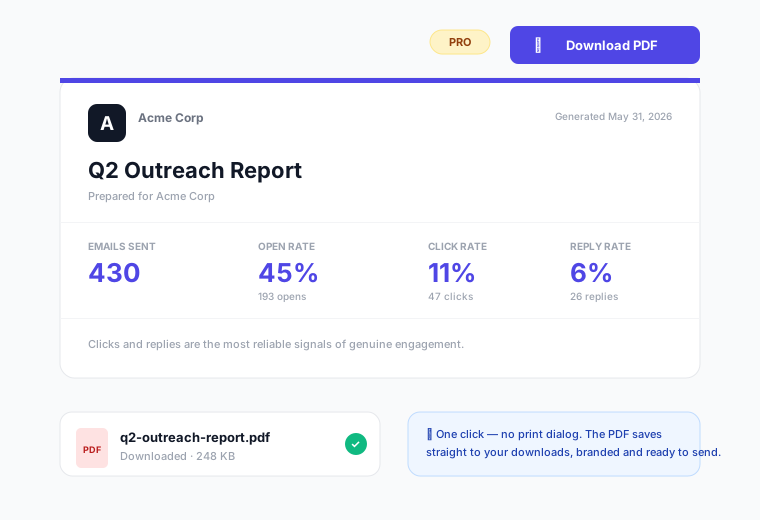
A shareable link is the best way to send a client live results — but sometimes you need a file: to attach to an email, archive for your records, or paste into a deck. On the Pro plan, every Client Report page has a one-click 'Download PDF' button that saves a clean, branded copy straight to your downloads. No print dialog, no screenshots.
How to download
- 1Open the report link (cmass.io/r/…) in any browser — the same link you'd send a client.
- 2Click the 'Download PDF' button in the top-right corner of the page.
- 3Wait a moment while CMass renders the page — the button shows 'Preparing…'.
- 4The PDF saves to your downloads, named after the report (e.g. q2-outreach-report.pdf).
Why it's a Pro feature
One-click PDF export is part of the Pro plan, alongside branded reports and Claude AI personalization. The button appears automatically on reports generated by a Pro account — there's nothing to switch on.
On the Free plan
Free reports still have a 'Print / Save as PDF' button. It opens your browser's print dialog, where you can choose 'Save as PDF' as the destination — it works on every operating system, it just takes an extra step. Upgrade to Pro for the instant one-click download.