CSV import is ideal for contact lists exported from a CRM (HubSpot, Salesforce, Apollo, Instantly, etc.) or built in Excel or Google Sheets. CMass parses the file in your browser — it's never uploaded to our servers.
Required column
- ▸Email (also accepted: 'Email Address', 'Work Email', 'E-mail')
Recognized optional columns
- ▸First Name (or: First, fname)
- ▸Last Name (or: Last, lname)
- ▸Company (or: Company Name, Organization)
Any other column in your CSV becomes a custom merge tag automatically. For example, a 'Job Title' column becomes available as {Job Title} in your email template.
How to import
- 1Open CMass from the compose window
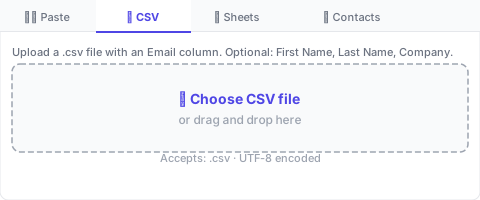
- 2Go to the Recipients tab and click the '📁 CSV' source tab
- 3Click 'Choose CSV file' and select your file
- 4CMass parses the file and shows a preview with the first 5 rows
- 5Review the preview — confirm the right columns are detected
- 6Click 'Add X contacts →' to add them to the campaign
Exporting from popular tools
HubSpot
Go to Contacts → Actions → Export. Choose CSV format. The exported file includes First Name, Last Name, Email, and Company columns that CMass auto-detects.
Apollo.io
Select contacts → Export → CSV. Apollo exports 'First Name', 'Last Name', 'Email', 'Company' and many enrichment fields — all of which become custom merge tags in CMass.
Google Sheets
File → Download → Comma Separated Values (.csv). Or use the Google Sheets import method in CMass to skip the download step entirely.