The Google Sheets integration is the most powerful import method in CMass. Paste a Sheet URL, and CMass reads your contact data live — no downloading, no reformatting. Every column in your Sheet becomes a merge tag, and custom fields flow through to AI personalization automatically.
Before you start: share the Sheet
CMass accesses your Sheet via its public URL, so the Sheet must be set to 'Anyone with the link can view':
- 1Open your Google Sheet
- 2Click Share (top right)
- 3Click 'Change to anyone with the link'
- 4Make sure the role is set to 'Viewer'
- 5Click 'Copy link' and paste it into CMass
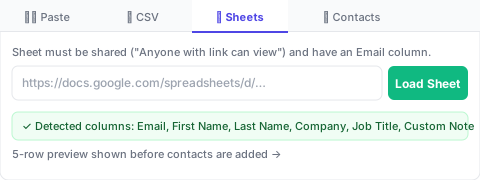
Required column
- ▸Email (must contain the @ symbol in every row)
Best practice for headers
Use clear, single-word-ish column headers that will make readable merge tags:
- ▸First Name → {First Name}
- ▸Company → {Company}
- ▸Job Title → {Job Title}
- ▸Custom Note → {Custom Note}
- ▸LinkedIn URL → {LinkedIn URL}
How to import
- 1Open CMass from the compose window
- 2Go to the Recipients tab and click the '📊 Sheets' source tab
- 3Paste your Google Sheet URL
- 4Click 'Load Sheet'
- 5CMass shows a preview table — review the first 5 rows
- 6Click 'Add X contacts →' to confirm
Custom merge tags from your Sheet
Every column in your Sheet beyond Email, First Name, Last Name, and Company becomes a custom merge tag. You'll see them appear as purple chips in the Template tab's Personalize section. Click any chip to insert it at your cursor position in the subject or body.
Refreshing data
CMass reads the Sheet at import time — it doesn't sync in real time. If you update the Sheet after importing, remove the recipients and re-import to pick up the changes.