The Paste import method is the quickest way to add a small list of recipients. It's perfect for lists under 100 contacts or for quick one-off campaigns where you don't have a spreadsheet ready.
Format
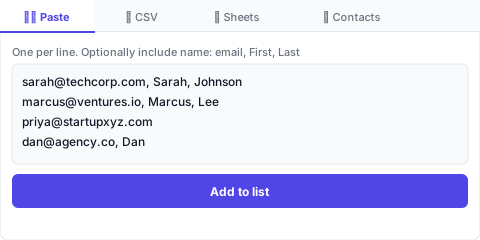
Each line is one recipient. Email only is the minimum. You can optionally include first name and last name, separated by commas:
- ▸Email only: john@acme.com
- ▸With first name: john@acme.com, John
- ▸With first and last name: john@acme.com, John, Smith
💡 Names are optional but recommended — they unlock {first_name} and {last_name} merge tags and improve AI personalization quality.
How to use it
- 1Open CMass from the compose window
- 2Go to the Recipients tab
- 3Make sure the '✏️ Paste' source tab is selected
- 4Paste your list into the text area
- 5Click 'Add to list'
CMass deduplicates automatically — if you paste the same email address twice, it only adds it once.
Tips
- ▸Separate multiple recipients with new lines or semicolons
- ▸You can paste from Excel, Google Sheets, Notion, or anywhere — CMass reads plain text
- ▸Mix formats freely — some lines can have names, others can just be email addresses
- ▸Emails that don't contain '@' are silently skipped