Sending speed matters for two reasons: Gmail has daily limits, and sending too many emails too fast is a signal that spam filters use to classify your account as a bulk sender. CMass gives you fine-grained control over timing and speed.
Sending now vs. scheduling
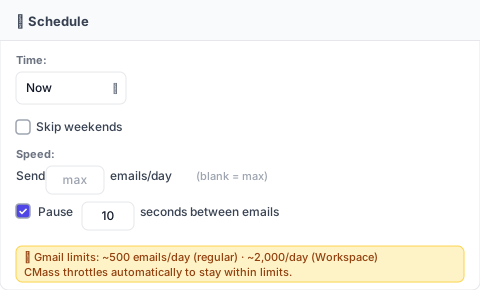
In the Settings tab, the Schedule section has a Time dropdown:
- ▸Now — the campaign starts sending immediately after you click 'Send Campaign'
- ▸Specific time — choose a date and time for the campaign to begin sending
Scheduled campaigns are queued on CMass's backend — you don't need to keep Gmail open. The emails send at the scheduled time regardless of whether your browser is open.
Daily send limit
The 'emails/day' field caps how many emails CMass sends per calendar day. If left blank, CMass sends as fast as Gmail allows.
- ▸Regular Gmail: ~500 emails/day maximum
- ▸Google Workspace: ~2,000 emails/day maximum
- ▸Set a lower number (e.g. 100/day) if you're warming up a new account or want to spread a large campaign over multiple days
Pause between emails
The 'Pause X seconds between emails' option adds a delay between each send. This mimics human sending behavior and reduces the chance of triggering Gmail's bulk-sending detection:
- ▸0 seconds — send as fast as possible (fine for small lists under 50)
- ▸10–30 seconds — recommended for lists of 50–200
- ▸30–60 seconds — recommended for lists over 200 or new Gmail accounts
Skip weekends
Toggle 'Skip weekends' to pause sending on Saturday and Sunday. Emails scheduled to go out on a weekend day will instead send on the following Monday. This is useful for B2B campaigns where recipients are more likely to read email during the work week.
Best times to send
Research consistently points to a few windows with higher open rates for B2B email:
- ▸Tuesday, Wednesday, Thursday — avoid Monday (inbox overload) and Friday (lower engagement)
- ▸8–10am recipient's local time — catches people before they're deep in their day
- ▸Avoid holidays and the week between Christmas and New Year