Before sending a campaign to your full recipient list, it's worth sending a test to yourself. The test email shows you exactly how the email will look in a real inbox — with merge tags filled in with sample values and images loaded.
How to send a test
- 1Open the CMass panel from a compose window
- 2Go to the Settings tab
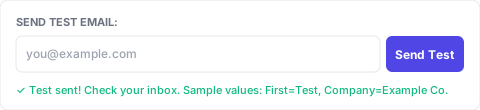
- 3Enter your email address in the 'Send Test Email' field
- 4Click 'Send Test'
The test email arrives in your inbox within a few seconds. Merge tags are filled with sample values: first_name='Test', last_name='User', company='Example Co'.
What to check in the test
- ▸Subject line looks correct and doesn't have unfilled {tags}
- ▸Merge tags in the body are replaced correctly
- ▸Images and video thumbnails load
- ▸The email looks right on mobile (check on your phone)
- ▸Links work and go to the right pages
- ▸Unsubscribe link is present if required
✅ Check spam: Also check your spam folder after sending the test. If the test lands in spam, your campaign will too — and you'll want to investigate your sender reputation before launching.
In-panel preview
For a quick look without sending an email, click the 'Preview' button at the bottom of the panel. It shows a pop-up with your first recipient's email fully rendered — merge tags filled in, no images loaded. Use this for a quick check; use Send Test for a full deliverability check.